Which file is this picture in? Searching PDFs, PowerPoint and Word files by image
8 min read
Spotlight, Windows Search and Microsoft Office cannot find a document by a picture inside it. They index words, not embedded images. Microsoft's own answer to this question is blunt: "There's no way to search for a file based on the images it contains."
For a handful of files you can do it for free. Word, PowerPoint and Excel files are ZIP archives that keep every embedded picture in a media folder, and the open-source pdfimages tool copies every image out of a PDF with its page number. Point a free duplicate finder such as dupeGuru or digiKam at the extracted images and you have your answer.
For hundreds of documents, or when you need the answer to read "catalog.pdf, page 14", you need software that indexes embedded images and remembers where each one came from. ImgSeek does this for PDF, Word (.docx), PowerPoint (.pptx) and Excel (.xlsx, .xls) files.
Why ordinary search can't find it
Desktop search builds an index of words: file names, document text, metadata. A picture inside a document is stored as an image stream — a JPEG or PNG packed into the file — and nothing in that index describes what it looks like. There is simply nothing for a text search to match against.
Text recognition does not close the gap either. It helps only when the picture itself contains words. A product photo, a logo variant, a site photo or a scanned drawing has to be found by comparing the images themselves.
The free way: extract the images, then compare them
This works on a Mac or a PC, costs nothing, and is the right answer if you have a few dozen documents to check once.
Step 1 — Word, PowerPoint and Excel: unzip them
Modern Office files are ZIP packages; Microsoft's own documentation tells developers to rename a .pptx to .zip to look inside. Copy the file, change the extension, open it, and the embedded pictures are all in one folder:
report.docx   →  word/media/
deck.pptx     →  ppt/media/
prices.xlsx   →  xl/media/
On Windows, rename the copy to .zip and use Extract All. On a Mac, Terminal's unzip reads the file without renaming it:
unzip deck.pptx "ppt/media/*" -d deck-imagesOlder .doc, .ppt and .xls files are not ZIP archives. Open them in Office and save them in the current format first.
Step 2 — PDFs: pdfimages
pdfimages ships with Poppler, the open-source PDF library. It copies out the images embedded in the PDF rather than rendering the pages — JPEGs byte for byte, most other images as PNG — and the -p option puts the page number in every file name, which is what lets you trace a match back to a page. On a Mac, install it with Homebrew; on Windows, prebuilt binaries are published at poppler-windows and the commands are the same.
brew install poppler
pdfimages -list catalog.pdf
mkdir catalog-images
pdfimages -all -p catalog.pdf catalog-images/catalog
Pictures with transparency come out as two files, the image and a grey mask; the mask can be ignored. If you already pay for Adobe Acrobat, its Convert panel has an Export all Images option that does the same job, one PDF at a time.
Step 3 — compare against the picture you have
Put your reference picture in with the extracted folders and run a similarity scan: dupeGuru's Picture mode groups it with its matches, and digiKam can search for images similar to it once the folders are added to its collection. Name each extracted folder after its document, and a match tells you the file — plus the page, for PDFs.
These free tools are good at one specific kind of match: the same image, resized or recompressed. If the picture you have is a different photograph of the same product, they will not pair it. Why that is, and what does pair it, is covered in duplicate finders vs. semantic search.
Your options compared
| Method | Word | PowerPoint | Excel | Says which file and page | Matches beyond exact copies | Workable at 500 documents | Price | |
|---|---|---|---|---|---|---|---|---|
| Spotlight / Windows Search | ❌ | ❌ | ❌ | ❌ | — | — | — | Built in |
| Extract + dupeGuru or digiKam | ✅ via pdfimages | ✅ | ✅ | ✅ | ⚠️ Only through your folder names; page number for PDFs | ⚠️ Resized or recompressed copies, not re-shot photos | ❌ Manual work per document | Free |
| Adobe Acrobat — Export all Images | ✅ | ❌ | ❌ | ❌ | ❌ Extraction only, no search | — | ❌ One PDF at a time | Paid Acrobat |
| ImgSeek | ✅ | ✅ .docx | ✅ .pptx | ✅ .xlsx, .xls | ✅ "Page 14, image 2", "Slide 3, image 1" | ✅ Semantic matching; results still need a human look | ✅ Indexes whole folders; later runs only process new and changed files | $49 one-time |
Checked October 2026 against each vendor's documentation. Acrobat's Export all Images extracts pictures but does not search them; you would still need a comparison tool afterwards.
What ImgSeek reads inside documents — and what it doesn't
You point ImgSeek at folders. It indexes the images in them and the images embedded in the documents in them, where they are — nothing is moved, and nothing is uploaded. Each result names the source document and the position inside it:
- PDF — embedded images, page by page: "Page 14, image 2".
- PowerPoint (.pptx) — pictures on every slide, including pictures inside grouped shapes: "Slide 3, image 1".
- Excel (.xlsx and legacy .xls) — pictures on every sheet, labelled with the sheet name.
- Word (.docx) — embedded pictures, numbered "Image 1", "Image 2" and so on. Word documents have no fixed pages, so there is no page number to report.
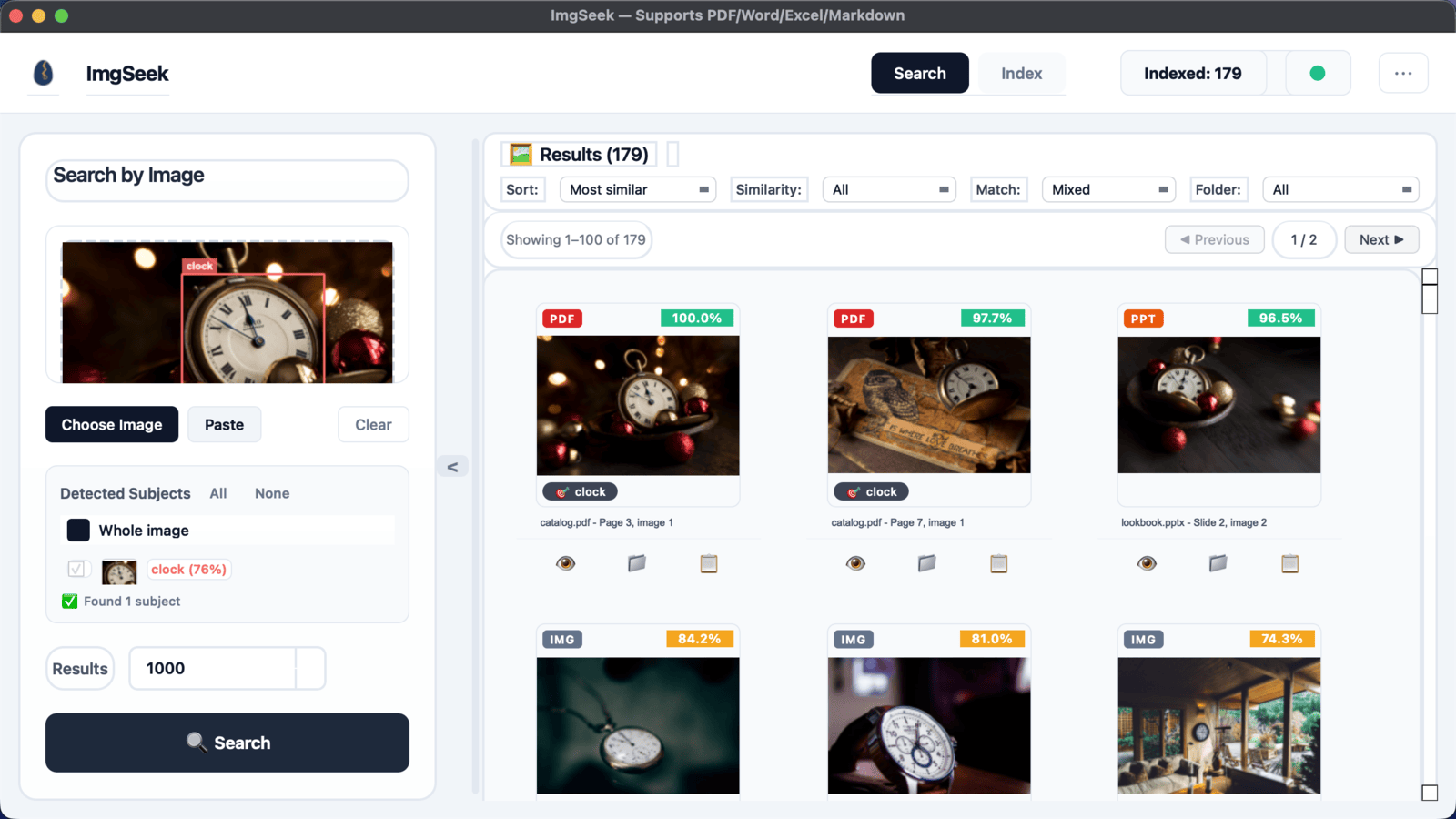
Not supported: legacy .doc and .ppt files (save them as .docx or .pptx first); Keynote, Pages and Google Docs files; charts and diagrams drawn as vector shapes; and HEIC or RAW image files sitting in the same folders — ImgSeek reads JPEG, PNG, WebP, BMP, GIF and TIFF.
For common kinds of objects, such as chairs, cups or clocks, it also detects the main subject of your reference picture and searches with that, so a shared white background or slide template is less likely to drive the matches. Subject detection only knows a fixed set of common object types: anything else, headphones for example, is missed or given the wrong label. In that case search with the whole image, which still works.
When ImgSeek is the wrong tool
- A few documents, one time — the free method above is enough. Paying for software to check twenty files is poor value.
- You are looking for words, not pictures — your system search already indexes document text, and does it better.
- Your documents live in Keynote, Pages, Google Docs, or a cloud workspace that isn't synced to your disk — ImgSeek only reads local .pdf, .docx, .pptx, .xlsx and .xls files.
- You have an Intel Mac or use Linux — the Mac build is Apple Silicon only, and there is no Linux build.
- You can't install unnotarized apps — the Mac build is not yet notarized by Apple, so the first launch needs a manual approval (steps here). Some company-managed Macs block that outright. ImgSeek is also closed source.
- You need a definitive answer, not a shortlist — results are ranked by similarity score, and someone still has to open the document and confirm.
- You need to single out one kind of object the detector doesn't know — subject detection covers common object types only, so headphones or a specific product part won't be picked out of a busy picture. Searching with the whole image still works.
Frequently asked questions
- Can Spotlight or Windows Search find images inside PDFs or PowerPoint files?
- No. Both index file names and the text inside documents, not the pictures embedded in them. Microsoft's own support answer to this question is that there is no way to search for a file based on the images it contains. To find a picture inside documents you have to extract the images and compare them, either by hand or with a tool that indexes embedded images.
- How do I extract all the images from a PowerPoint or Word file?
- Copy the file, rename the copy from .pptx to .zip and open it: every embedded picture is in the ppt/media folder. Word files keep theirs in word/media and Excel files in xl/media. Older .ppt and .doc files are not ZIP archives, so open them in Office and save them as .pptx or .docx first.
- How do I extract all the images from a PDF?
- Use pdfimages from the free Poppler tools. The command pdfimages -all -p file.pdf prefix writes out every embedded image, JPEGs exactly as stored and most others as PNG, with the page number in each file name. Paid Adobe Acrobat can do the same with its Export all Images option. Neither extracts charts or diagrams drawn as vector graphics, because those are not images.
- Does this work with scanned PDFs?
- Only partly. A scanned PDF stores each page as a single image, so any tool, manual or automatic, ends up comparing your picture against whole pages. Expect weaker results than with documents where the pictures were inserted as separate images.
- What about old .doc and .ppt files?
- They use older binary formats rather than ZIP packages, so the rename-and-unzip method does not work on them and ImgSeek does not read them. Open them in Office and save them as .docx or .pptx. Legacy Excel .xls files are the exception: ImgSeek reads those directly.
- Does ImgSeek upload my documents or images?
- No. Indexing and search run entirely on your computer, and your documents, images and index never leave it. The app goes online in two cases only: activating a license, when newer-format keys are verified online once and older keys are checked on your machine, and an update check that reads a small version file from download.imgseek.org without sending any images, file details or license key.